Documentation
Everything you need to get started, integrate, and get the most out of Topogy.
Topogy Router
The Topogy Router brings your team's engineering workflow into every Claude Code session. It recognizes the triggers in a piece of work — touching a database migration, changing a frontend component, writing a PRD, committing to a protected branch — and hands Claude the guidance your team wrote for that trigger, right before Claude acts. Guidance comes from your organization's library, which Topogy builds and maintains with you.
The router installs as a Claude Code plugin from Topogy's marketplace. Start by installing it for yourself; when your team is ready, roll it out to a group of developers with MDM or to your whole organization with managed settings. Each developer then signs in to Topogy once.
What it does
Your library defines a playbook: a set of triggers, each describing the work it covers, and the guidance that applies at each one. When a session starts, the router gives Claude the playbook. From there:
-
Claude loads guidance before it acts. When a trigger matches what Claude is about to do, Claude asks the router for that trigger's guidance and follows it. Guidance is scoped, so a backend change and a frontend change in the same repository get different, relevant instructions.
-
Gates back it up. If Claude starts a matching change without loading the guidance — an edit, a shell command, a commit — the router can stop that tool call and tell Claude what to load first. Some triggers can always gate, such as committing before the checks your library requires.
-
You can see it working. Each time guidance loads, Claude starts its reply with a marker naming it, for example:
⟐ Router loaded: Frontend components — use the shared design tokens; no inline colors.
Apart from any rules your library applies when a session starts, guidance loads only when the work calls for it.
Overriding the router
You stay in control. Say these to Claude in any session:
| Say | Effect |
|---|---|
router: off | Lifts every gate for the session. |
router: on | Restores the gates. |
If your library sets a skip phrase for a trigger, saying it skips just that trigger. Overrides last for the current session only.
Prerequisites
- Claude Code 2.1.238 or later. Check with
claude --version. - macOS or Linux. Windows is not yet supported.
python3on yourPATH. The router's hooks are Python scripts with no other dependencies. Check withwhich python3.- A Topogy account. Each developer signs in to Topogy with their work email: with Google, with Okta if your organization uses it, or with a Topogy account created for that email. An account with your organization's email domain joins your organization automatically; no invitation is needed.
- You're on your organization's router list. Only the people your organization has added on the Topogy Router page in the Topogy app can download your library. Anyone else can sign in, but gets neither the library nor the router until they're added.
Get your setup from the Topogy app. Open the Topogy Router page in the Topogy app (currently labeled Skills Router under Settings). Its install section has the settings for your organization, with your marketplace and library already filled in, and a button to copy them. It appears once Topogy has published your library for the first time. If you can't open the page, ask your Topogy administrator to send you the settings.
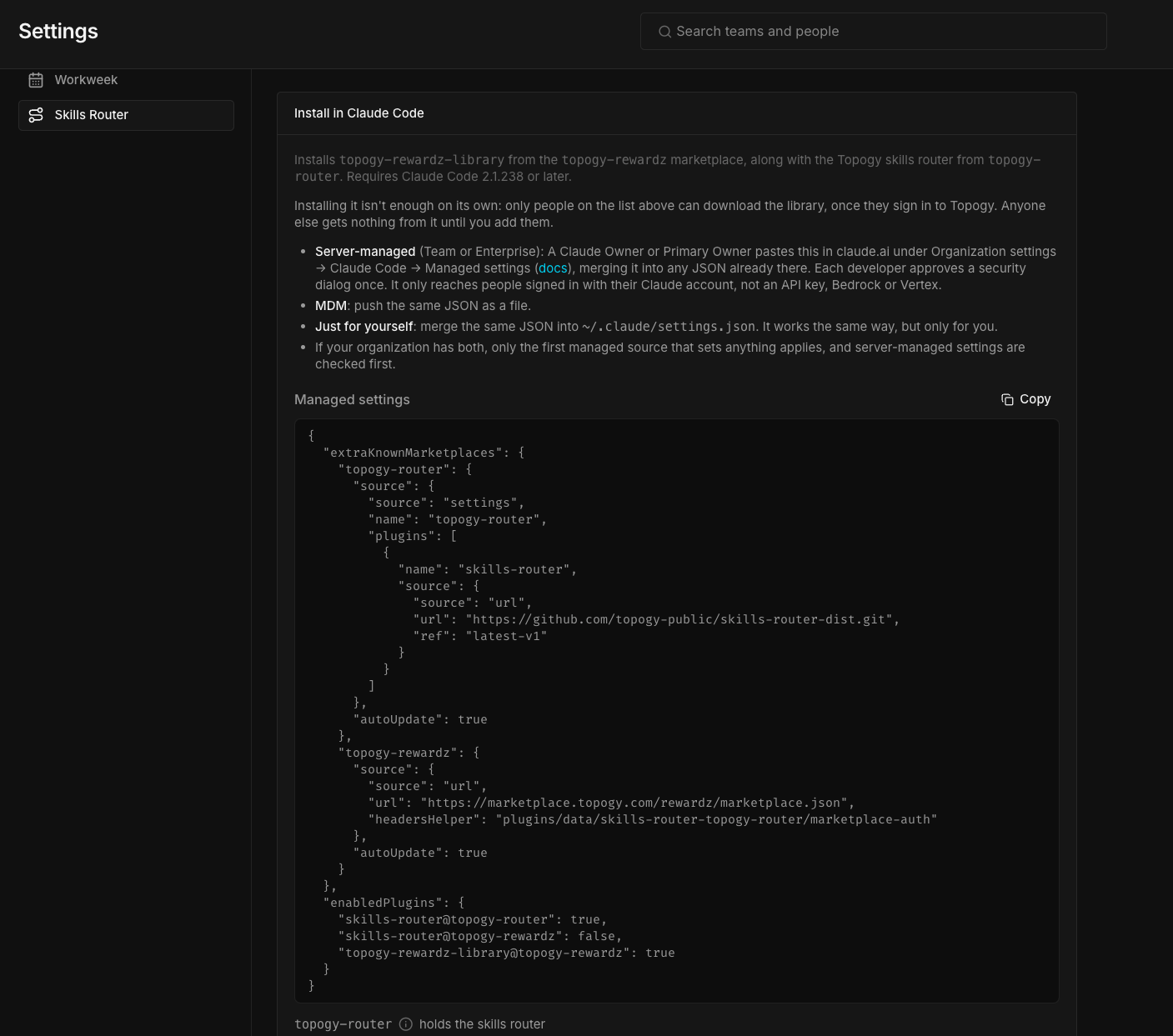
Install in Claude Code
The setup is one block of JSON settings, the same whichever way you install it. It adds two marketplaces:
topogy-router— Topogy's public marketplace for the router itself. It's the same for every organization and installs the newest router release your library supports.- Your organization's marketplace (its name starts with
topogy-) — holds your library. Claude Code downloads it through the router's sign-in, so only people on your router list who are signed in to Topogy can get it. The settings contain no password or token.
The settings also turn auto-update on, and turn off any other copy of the router so it never runs twice.
Where you put the settings decides who gets the router:
| Where | Who gets the router | Use it when |
|---|---|---|
| Your own settings file | Only you | You're trying the router out. Start here. |
| MDM | The machines your device management targets | You're rolling out to a team or pilot group. |
| Managed settings | Everyone in your Claude organization | Your whole organization is ready for the router. |
Just for yourself
Start here. Merge the JSON into your own ~/.claude/settings.json. If the file already has extraKnownMarketplaces or enabledPlugins, add the new entries inside them. Nobody else is affected. Then sign in to Topogy.
To try the router with a few colleagues first, have each of them do the same.
MDM (a group of developers)
Push the same JSON as a managed settings file through your device management tool. Because you choose which machines get the file, MDM can turn the router on for one team or a pilot group before everyone else. See Claude Code's settings documentation for where the file goes on each platform.
If your organization has both server-managed settings in claude.ai and an MDM file, only the first source that sets anything applies, and server-managed settings are checked first. Put the router settings in the one you already use.
Managed settings (whole organization)
Use managed settings only when your whole organization is ready for the router. Managed settings in claude.ai apply to every Claude Code user in your Claude organization at once; there's no way to turn them on for only some people. As soon as you save, every developer is prompted to approve the settings in each Claude Code session they have open, and anyone who declines has to exit Claude Code. To start with fewer people, use MDM or have developers install it for themselves.
One paste by a Claude administrator turns the router on for every Claude Code user in your Claude organization. Developers can't turn it off.
-
In claude.ai, go to Organization settings → Claude Code → Managed settings. You need the Owner or Primary Owner role.
-
Copy the settings from the Topogy Router page and paste them in. If managed settings already exist, merge the new entries into your existing
extraKnownMarketplacesandenabledPluginsrather than adding them a second time.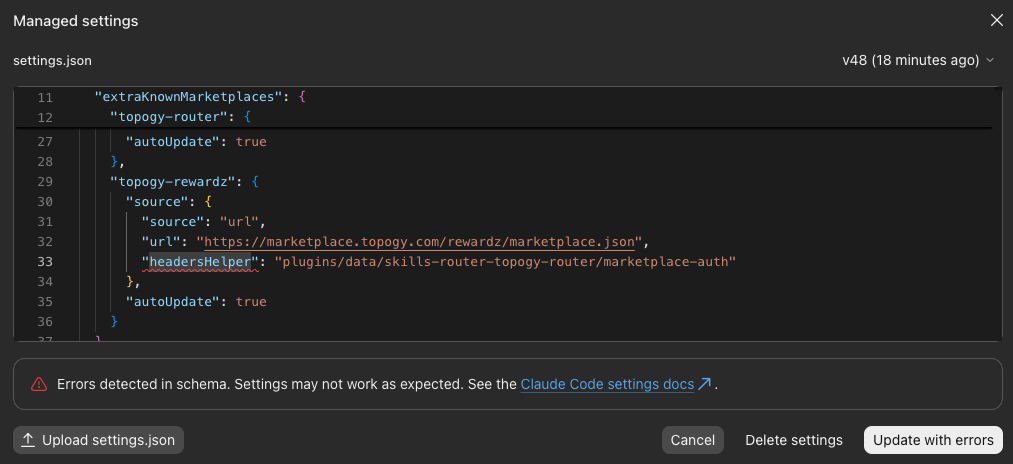
-
Save with Update with errors.
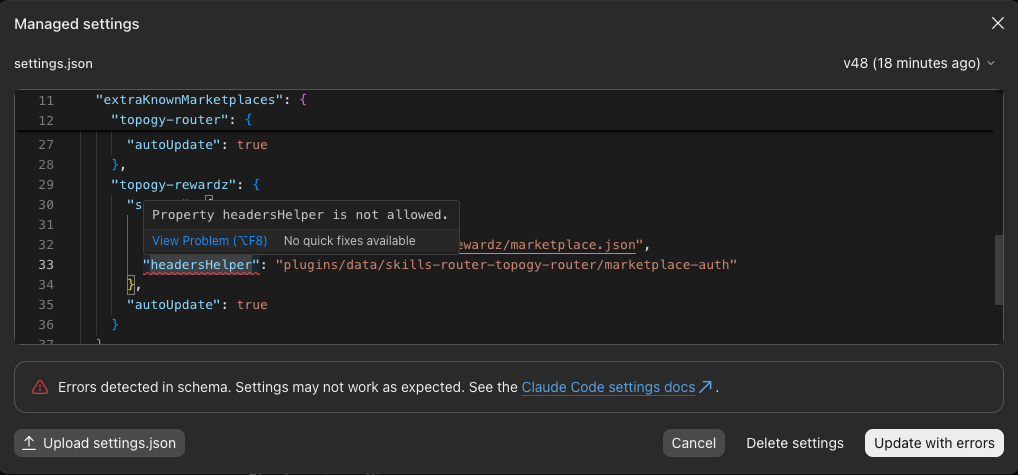
The editor flags
headersHelperas an error. The settings still work. Claude Code supportsheadersHelperon a marketplace source, but the editor's schema doesn't list it yet, so it underlines the property ("Property headersHelper is not allowed") and warns "Errors detected in schema". Choose Update with errors to save. LeaveheadersHelperin place: without it, nobody can download your library.
-
Every developer must approve the settings before they can keep using Claude Code. The prompt lists the Topogy marketplace's
headersHelper, the command that signs them in to download your library. Choosing No, exit Claude Code closes Claude Code.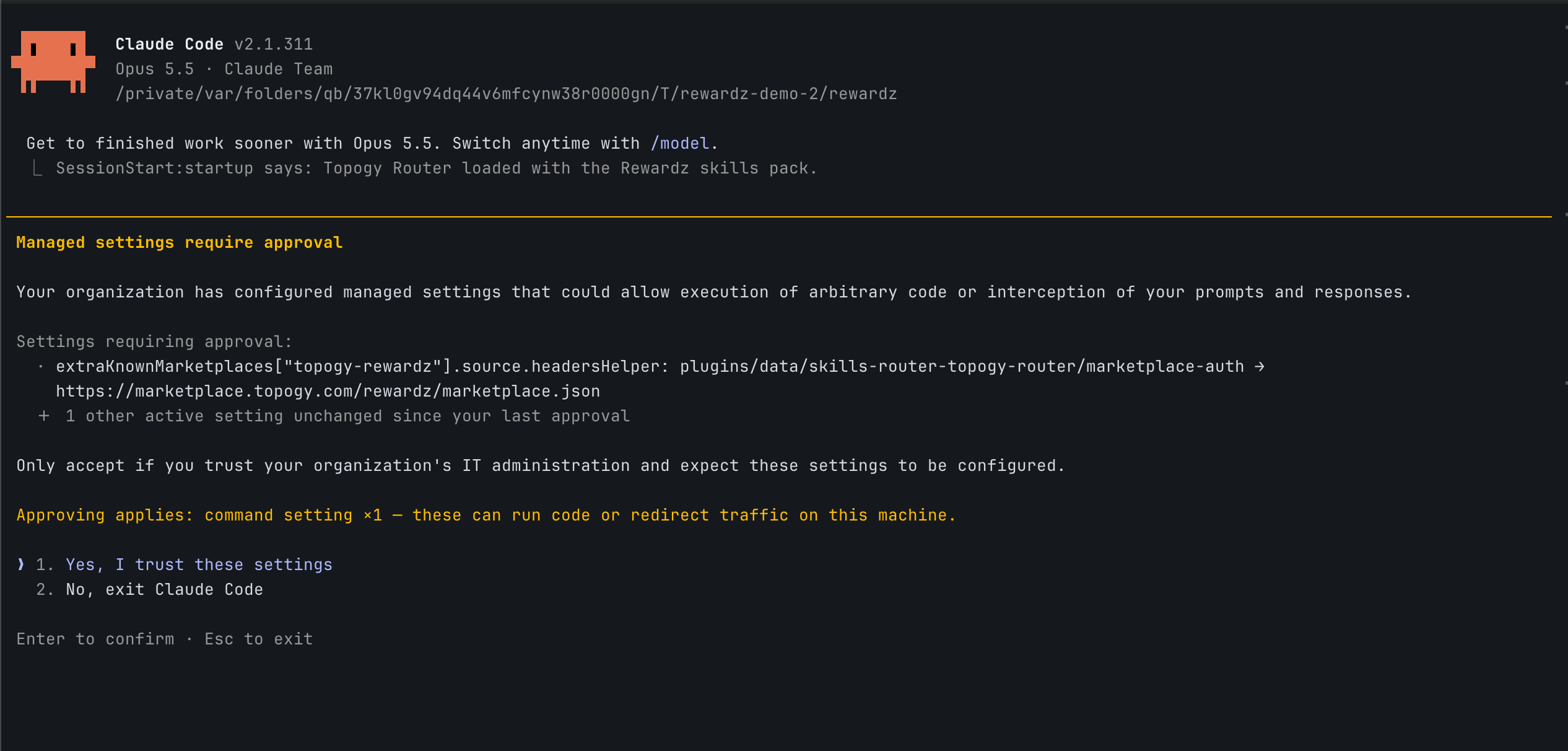
-
Managed settings need a Claude Team or Enterprise plan, and only reach people signed in with their Claude account, not a Console API key or a third-party provider such as Bedrock or Vertex.
Sign in to Topogy
Each developer signs in once, however the router was installed.
-
Start Claude Code. The first install takes a few sessions to finish: if you don't see the sign-in notice below, exit Claude Code and start it again. It can take up to three starts. Until you sign in, the router reminds you at startup:

-
Type
/skills-router:login. Claude can't run it for you. It opens your browser at the Topogy sign-in page, and prints the link in case the browser doesn't open: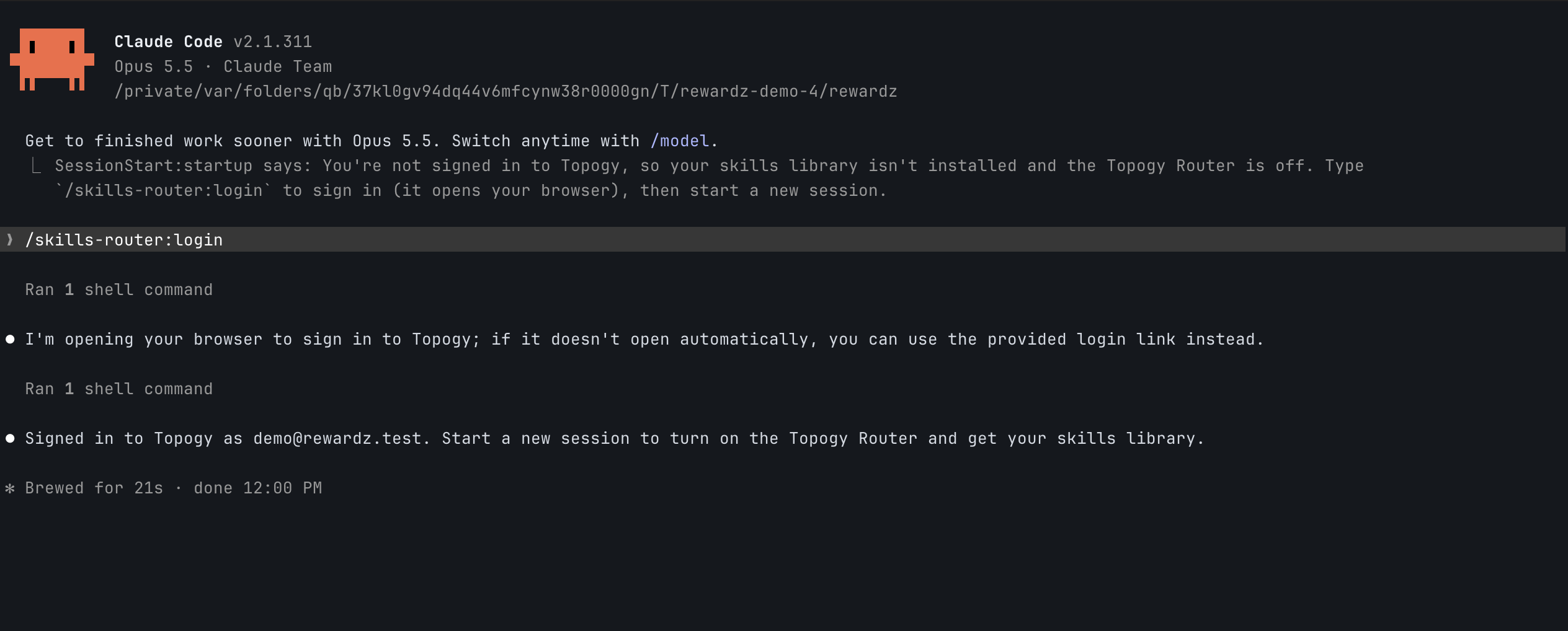
-
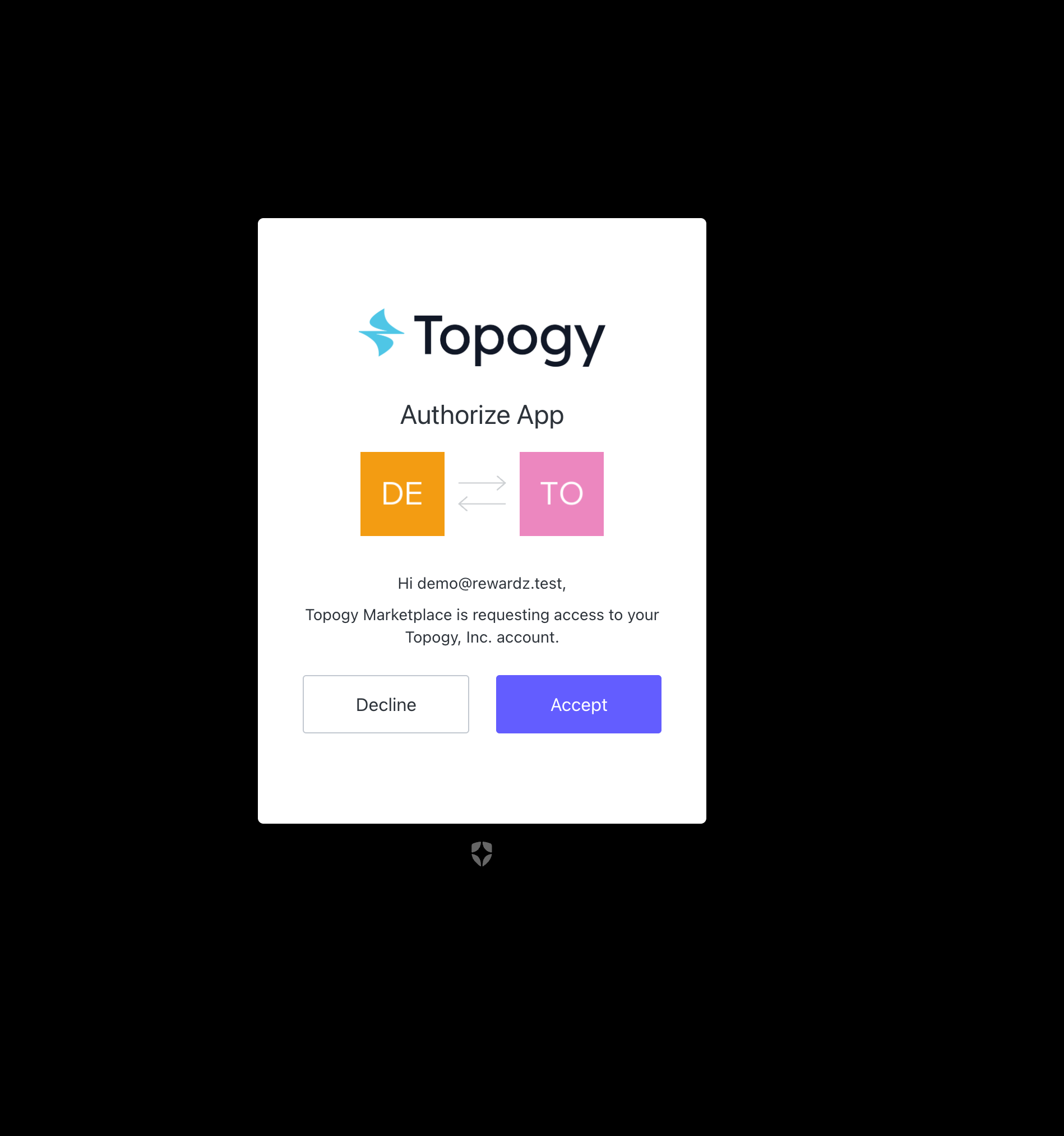
Sign in with your work account. If Topogy asks you to authorize Topogy Marketplace, choose Accept:
-
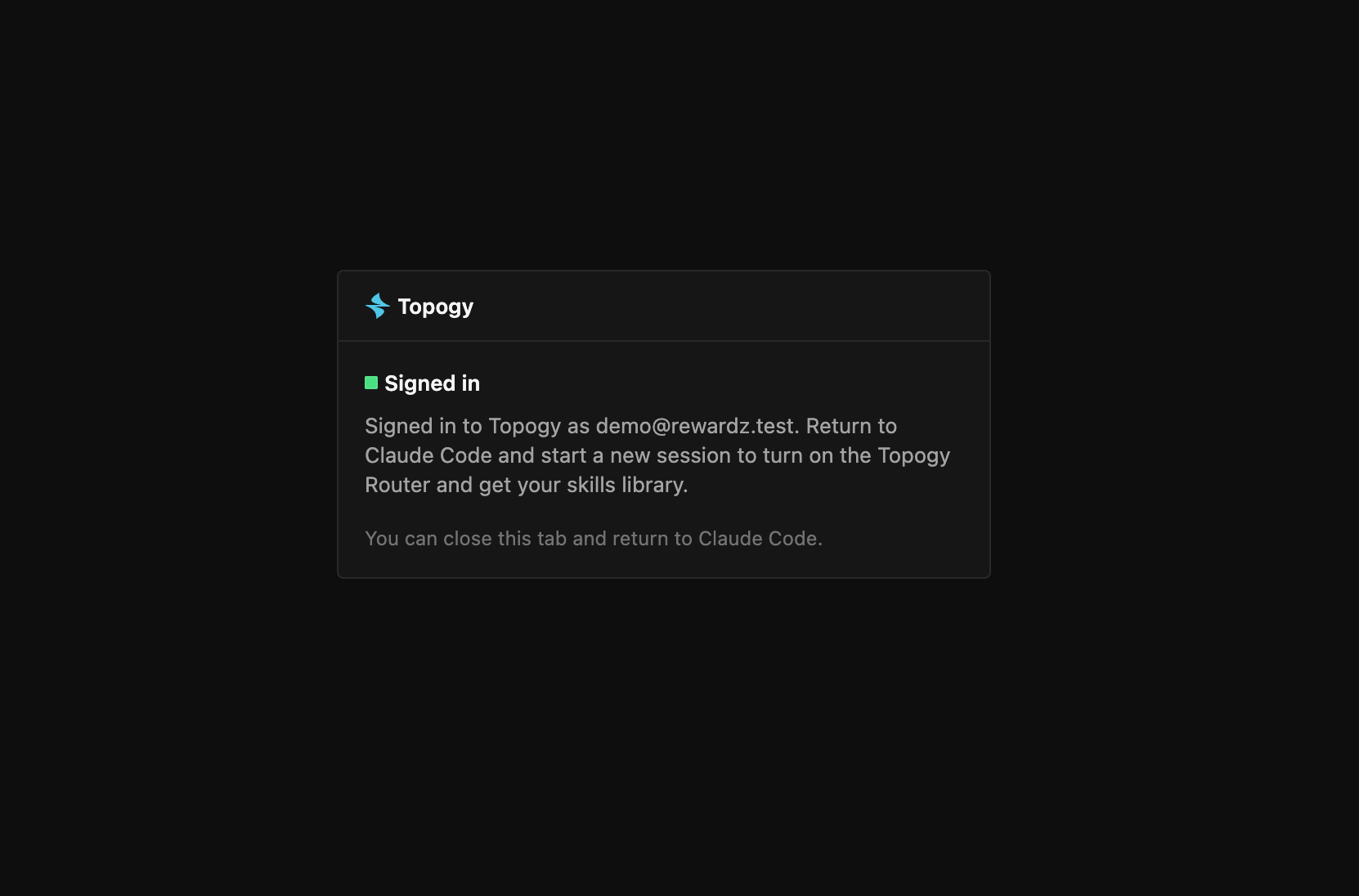
The browser confirms when you're done:
-
Start a new session. Claude Code downloads your library, and the router announces it at startup:

Your sign-in lasts 30 days. In the last three days, the router reminds you at startup; run /skills-router:login again to renew it. To sign out, run /skills-router:logout.
Who gets the router
Your organization chooses who the router guides on the Topogy Router page:
- Adding someone turns the router on for them within about an hour, from their next session. They don't need to sign in again while their sign-in is still valid.
- Removing someone stops their library updates within about ten minutes, and turns the router off from their next session after that. The library already installed on their machine stays, unused.
Staying up to date
New versions of your library and the router download in the background during interactive sessions and load the next time you start a session. To update right away, open /plugin, go to Marketplaces, select your organization's marketplace (its name starts with topogy-), choose Update marketplace, and start a new session.
Troubleshooting
Run /skills-router:check-access first. It says whether the router is on for you, which account you're signed in as, and what to do if it's off. Start a new session after anything changes; a running session keeps the answer it started with.
You installed the router but never see the sign-in notice. The first install takes a few sessions to finish. Exit Claude Code and start it again, up to three times, until the notice appears.
Startup says you're not signed in, or your sign-in has expired. Type /skills-router:login, finish signing in in the browser, then start a new session.
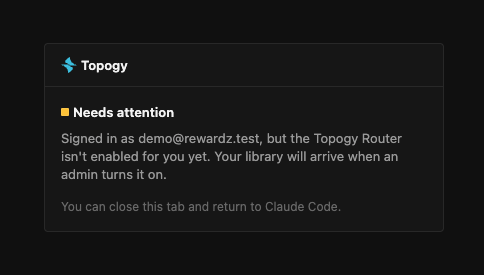
Sign-in or startup says the router isn't enabled for you yet. You're signed in but not on your organization's router list. Ask your Topogy administrator to add you; your library arrives and the router turns on by itself once they do, without signing in again.
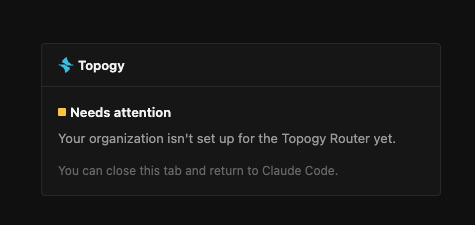
Sign-in says your organization isn't set up for the Topogy Router yet. Topogy hasn't finished setting up the router or publishing your library. Reach out to your Topogy contact.
Sign-in says its ports are in use. Signing in listens on 127.0.0.1 port 47821, 47822 or 47823, whichever is free. Close whatever is using all three and try again.
Your library never downloads. Make sure you started a new session after signing in, then run /skills-router:check-access to see whether the router is on for you.
The router is installed but nothing happens. Run /skills-router:check-access. Also check that which python3 works in the shell you launch Claude Code from. Guidance scoped to a repository applies only inside a git checkout of that repository.
The router appears twice in /hooks. Two copies are installed. Open /plugin and uninstall every copy of skills-router except the one from the topogy-router marketplace.
For help during setup, reach out to your Topogy contact or email support@topogy.com.